How to subscribe to Dual Invest
Step 1
Log in to UMX and go to Wealth > Dual Invest.
Log in to UMX and go to Wealth > Dual Invest.
Step 2
Select the product you want to subscribe to.
- Select a direction: Buy BTC low, Sell BTC high, Buy ETH low, Sell ETH high
- Select a term: All terms, Under 7 days, 7–30 days, Over 30 days
- Select your target price then select Subscribe
Step 3
Enter your subscription amount. You can switch between the "≤ Target price" and "> Target price" tabs to compare returns under each scenario at maturity, then select Next.
Enter your subscription amount. You can switch between the "≤ Target price" and "> Target price" tabs to compare returns under each scenario at maturity, then select Next.
Step 4
Check I've read and agreed to the Dual Invest Terms of Service, then select Confirm.
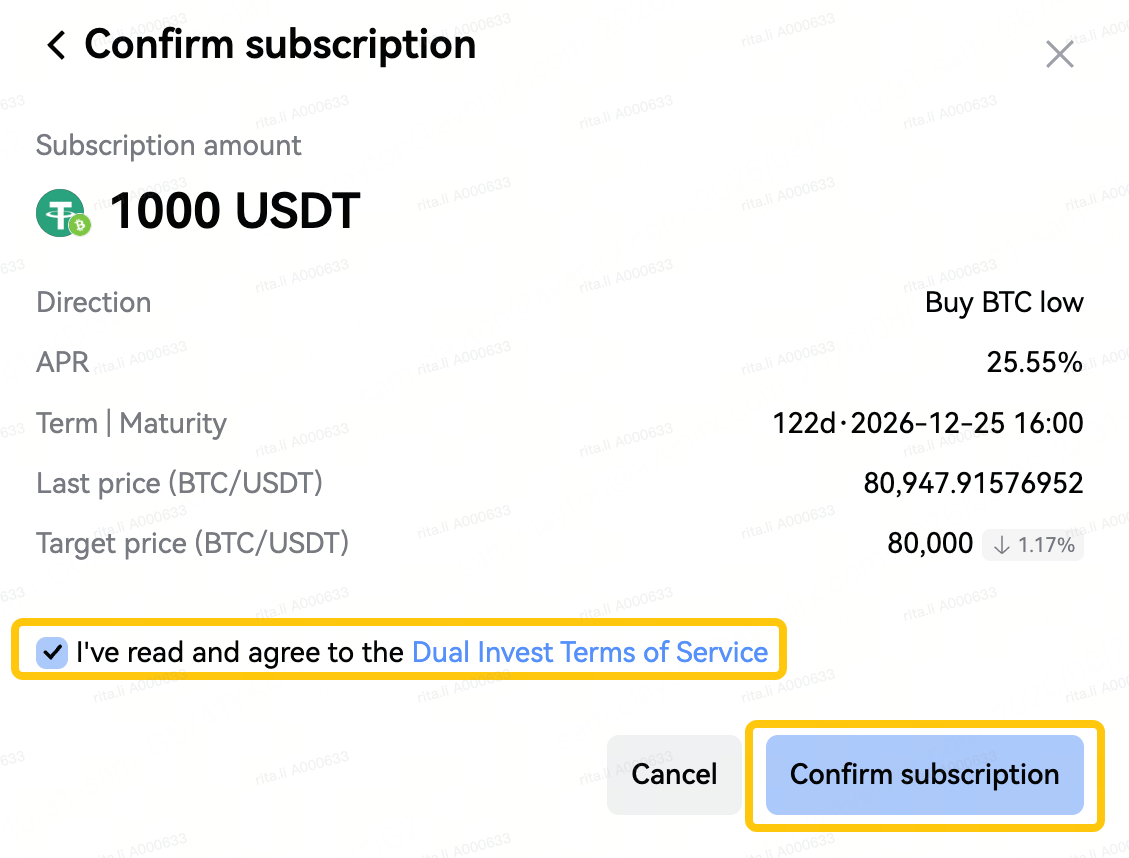
Check I've read and agreed to the Dual Invest Terms of Service, then select Confirm.
Step 5
Your screen will briefly show a loading state while the order is confirmed, then update to a result screen showing your subscription confirmation.
Your screen will briefly show a loading state while the order is confirmed, then update to a result screen showing your subscription confirmation.
How to view subscriptions
Via Wealth overview
Go to any page under Wealth overview and select View my assets to open Wealth total assets. You can view subscriptions by product or by account. Select View details on any Dual Invest subscription to see its details.
Via Assets home
Go to Assets > Crypto and select Funding account, then Investment > Dual Invest. Select View details on the subscription you want to check.
How to view settlements
Go to Assets > Orders > Wealth orders > Dual Invest. Use the filters to check the statuses and settlement results of different orders.